Description: Learn the various split check methods, such as split by seat, item split, manual split, and split equally, and how to manage multiple payments efficiently to ensure accurate billing and a seamless guest experience.
Availability: United States, Canada
Servers can select from multiple split methods, such as by seat, item, manual assignment, or equally directly from their handheld device. Each split check is saved under the original table and supports multiple payment options.
Key Features
Split by Seat
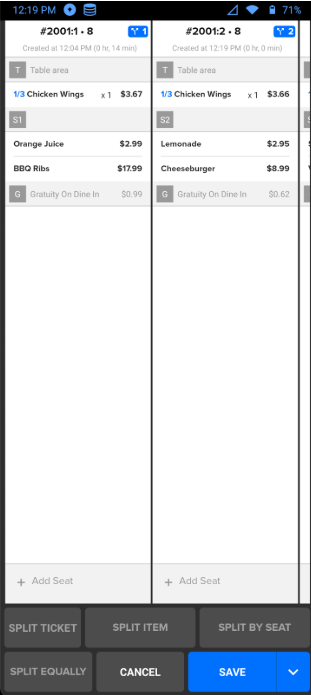
- Automatically separates checks based on the seat assignments at the table.
- Each guest’s items are grouped into an individual check.
- Ideal when each guest pays only for their own meal.
Manual Split
- Allows staff to manually divide items across multiple checks.
- Items can be reassigned to different tickets with just a few taps.
- Useful when guests request specific groupings (e.g., couples or shared bills).
Item Split
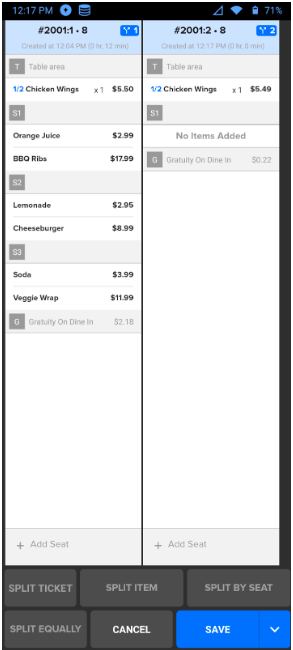
- Split individual menu items between guests (e.g., shared appetizers).
- Portion amounts and pricing automatically calculate based on how the item is divided.
- Ensures accuracy when guests share a dish.
Split Equally
- Can be performed via ‘quick action’ on the ticket grid, order entry kebab, or traditional ticket manager screen.
- Splits a check evenly (e.g., 3-ways, 4-ways) to divide the bill among all guests at a table.
- Table items (i.e., appetizers) are divided equally among the designated split count.
Saved Split Checks
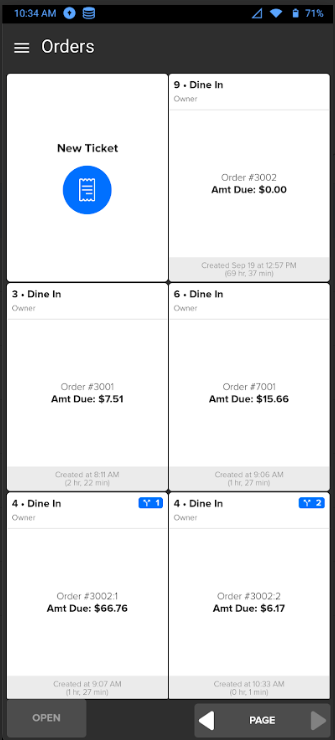
- After splitting, checks are saved and displayed under the original table.
- Staff can view, print, and process each split check individually.
- Supports multiple payment methods for smooth checkout.
Benefits
- Full split check flexibility on the mobile handheld.
- Speeds up the payment process and improves accuracy.
- Reduces server confusion with a consistent workflow across Workstation, Tablet, and Handheld.
- Enhances the guest experience by accommodating different payment preferences.
How to Access
Method 1: From the Order Screen
- Tap the kebab (⋮) menu and select Manage.
- Select the desired split option:
- Split by Seat
- Split Ticket (Manual)
- Split Item
- Split Equally
- Confirm and save the split checks.
Method 2: From the Quick Actions Ticket Grid
- Select Manage Ticket via the quick action pop-up on the ticket grid.
- Choose the desired split option and follow the prompts to confirm.
Comments
0 comments
Please sign in to leave a comment.