Description: Learn how to enable and use ID Check to verify customer identity and age. ID Check allows merchants to scan a valid, government‑issued ID to confirm customer eligibility for age‑restricted or identity‑required purchases, such as alcohol sales in the United States.
Overview
ID Check is a configurable setting that can be turned ON or OFF from the Settings Menu. When enabled, it uses the device camera to scan and review supported customer IDs. This helps you comply with age and identity verification requirements at the point of sale.
Enabling ID Check
- From the Home screen, tap the hamburger menu (three horizontal lines) in the upper left corner of the screen to access the menu.
- Tap ID Check.
Camera Permission Prompt
To enable ID Check, the application requires access to the device camera. You will be prompted with the question:
“Allow to take pictures and record video?”
Choose one of the following options:
- Allow: Grants camera access and requires the use of the ID Check feature.
- Deny: Prevents camera access and disables ID Check.
- Deny and don’t ask again: Disables ID Check and suppresses future permission prompts.
Note: Selecting "Allow" is required to proceed with ID Check.
Camera Calibration
After granting camera access, you will be prompted to calibrate the camera. Follow the on‑screen instructions to complete calibration.
Once calibration is complete, ID Check is enabled and ready for use.
Scanning an ID
- Once ID Check is enabled, select ID Check from the menu to begin scanning customer IDs.
- Position the customer’s ID within the camera frame.
- Select Scan ID to begin verification.
Accepted IDs:
- Passports
- Government‑issued IDs (e.g., driver’s licenses, state IDs)
Not accepted:
- Employee IDs
- Non‑government identification
To exit ID Check at any time, select Done to return to the Home screen.
Scan Results
After selecting "Scan ID," the application reviews the ID and displays a result indicating whether the ID is valid or invalid.
Valid ID
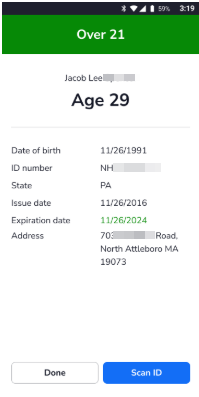
A valid ID meets all of the following criteria:
- Customer meets the required age (for example, 21 or older)
- ID has not expired
When valid, customer details may be displayed, including:
- Date of Birth
- ID Number
- State of Issuance
- Issue Date
- Address
Invalid ID
An ID is considered invalid if any verification requirement is not met, including but not limited to:
- ID is expired
- The customer does not meet the required age
When an ID is invalid, it cannot be used to verify customer eligibility.
For detailed guidance on specific error messages or scanning issues, refer to the relevant ID Check Troubleshooting articles.
Comments
0 comments
Please sign in to leave a comment.