Description: Learn what customers see when enrolling in Shift4 Loyalty, including the registration process, confirmation email, login steps, and loyalty dashboard features.
Note: This feature is currently available only for Pilot users.
Overview
This article explains the end-to-end customer experience after you share your Shift4 Loyalty enrollment link or QR code. It is intended to help you understand what customers see and how customers interact with their loyalty account after enrolling.
Customer Registration Experience
Accessing the Enrollment Page
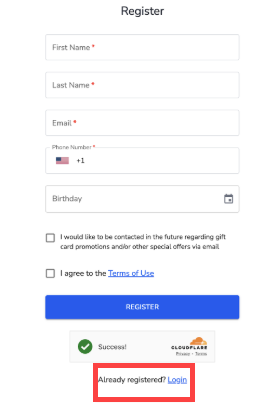
When customers select the Customer Enrollment URL or scan a QR code, they are taken to a mobile-friendly registration page to create a loyalty account.
The same enrollment link is used for both new registration and returning customer login.
Registration Information
To enroll, customers are asked to provide the following information:
- First Name (required)
- Last Name (required)
- Email Address (required): Used for account login and loyalty communications.
- Phone Number (required): Used for account lookup at the POS.
- Birthday (optional): Can be used for birthdays or special promotions.
Optional Preferences
- Customers may opt in to receive promotional emails and special offers.
- Customers must agree to the Terms of Use to complete enrollment.
Once the form is completed, customers select REGISTER to finish enrolling.
Post-Registration Confirmation
Confirmation Screen
After successful enrollment, customers see an on-screen confirmation message indicating that their loyalty account has been created.
Enrollment Confirmation Email
Immediately after registration, customers receive an enrollment confirmation email from you.
This email contains important account details, including:
- Member ID: The customer’s unique loyalty identifier
- Login Email: The email address used during registration
- Temporary Password: Auto-generated password for first-time login
- Loyalty Card Number: Used for account lookup and identification
- Next Steps: Instructions for logging in and updating the password
Important: Customers should be encouraged to change their temporary password after their first login for security purposes.
Customer Login Experience
Customers can access their loyalty account in one of the following ways:
- Selecting the same Customer Enrollment URL used for registration
- Selecting “Already registered? Login” on the registration page
To log in, customers enter:
- Their email address
- The temporary password provided in the enrollment email (or their updated password if previously changed)
Loyalty Dashboard Overview
After logging in, customers are taken to their loyalty dashboard, where they can view and manage their account.
Points Balance
The dashboard displays:
- The customer’s current loyalty points total
- A visual progress indicator showing progress toward the next reward
- Upcoming reward thresholds based on the merchant’s loyalty program
Rewards Section
Customers can view:
- All rewards available to earn
- The default rewards created when the loyalty program is installed, such as:
- One dollar off – 100 points
- Two dollars off – 200 points
- Five dollars off – 500 points
Each reward includes the point cost and a VIEW DETAILS button for more information.
Account Management
Customers can manage their account using the following sections:
- Overview: View points balance and rewards
- Account: Update personal information
- Security: Change password and manage security settings
Notes:
- Customers cannot enroll directly at the Shift4 Dine.
- All enrollment and account management actions are completed on the customer’s device.
- Loyalty accounts are tied to a unique email address and phone number.
Want to learn how to enroll customers and promote your loyalty program? Visit the Customer Enrollment for Shift4 Loyalty article.
Comments
0 comments
Please sign in to leave a comment.