Description: Learn how to use reporting in the MICROS e7 POS system, including Standard Reports and ReportsPlus, report categories, and where report files are stored.
Select a link below to jump to a section:
- Overview of Reports
- ReportsPlus Overview
- Types of Standard Reports
- Report File Storage Locations
- Use Case
Overview of Reports
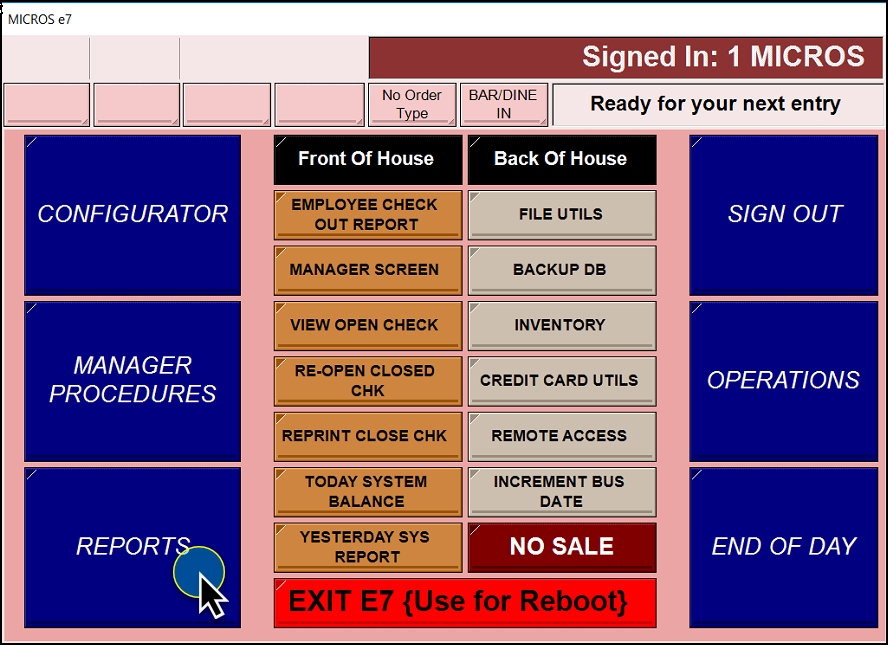
The MICROS e7 Reports module provides real-time, on-demand reporting across all POS workstations. The MICROS e7 System is capable of storing up to 60 days of historical totals and up to 21 days of transaction detail. Configure the duration of totals in Configurator | Restaurant | Posting | Number of Days to Keep.
You can generate reports for:
- Individual employees
- Specific workstations
- The entire restaurant
Output Options
You can:
- View reports on the POS touchscreen.
- Print to a local slip printer.
- Save as a text file.
- Export as a comma-delimited file (for Excel or third-party tools).
Report Formats
MICROS e7 supports two report types:
- Standard Reports – Pre-defined 40-column templates.
- ReportsPlus – Interactive, HTML-based reports.
ReportsPlus Overview
ReportsPlus provides an interactive reporting interface directly on the POS terminal. It uses hyperlinks to allow users to drill into data.
Report Navigation Levels
Level 1: Daily Operations Report
Displays high-level totals, including:
- Sales
- Tenders
- Service Charges
- Adjustments
- Taxes
- Labor
Level 2: Group and Item Reports
Select a category to view summarized data, such as:
- Menu groups
- Discount types
- Tender types
Level 3: Transaction-Level Reports
Displays detailed Check Reports, including:
- Individual guest checks
- Selectable check numbers for full detail view
Note: ReportsPlus is view-only.
You cannot print or export ReportsPlus data. Use Standard Reports for printing or file output.
Types of Standard Reports
Standard reports are grouped by function.
System Reports
Provide enterprise-wide financial data.
Includes:
- System Balance
- System Tax
- System Tip
- System Status
Sales Reports
Analyze revenue and product performance.
Includes:
- Family Group Sales
- Major Group Sales
- Menu Item Sales
- Menu Item Price
- Menu Item Availability
- Time Period Sales
- Void Reports
Tender Reports
Track payment activity.
Includes:
- Tender Reports
- Discount Reports
- Service Charge Reports
Employee Reports
Provide employee-level financial and operational data.
Common Use Case: Balancing employee banks or cash drawers
Includes:
- Employee Balance
- Employee Shift
- Employee Tip
- Employee Open/Closed Guest Checks
- Employee Listing
Labor Reports
Track time, wages, and labor performance.
Includes:
- Clock In Status
- Time Clock Detail
- Job Code Labor
- Labor Availability
Workstation Reports
Provide workstation-level reporting.
Includes:
- Workstation Balance
- Workstation Shift
- Consolidated Workstation Shift
Credit Card Reports
Accessed through the Credit Card Batch Utility on the Manager Function screen.
Select Reports from the Credit Card Batch Utility Tool Bar.
Includes:
- Batch Transfer Status Report
- Batch Detail Report
Common Use Case: Credit card reconciliation and bank balancing.
Note: Local e7 batch must successfully transfer the credit card records for Shift4 to receive the batch data.
Report File Storage Locations
The save location depends on how the report is generated.
Standard Text Files
- Select File
- Saved to:
\CF\micros\e7\etc - File name matches report title (example: Discounts.txt)
Exported Files (Comma-Delimited)
- Select Export
- Saved to:
\CF\micros\e7\DbExports - Compatible with Microsoft Excel
Credit Card Batch Reports
- Select Save in Batch Utility
- Saved to:
\CF\micros\e7\etc
File naming format:
- BatchTransferReportX.rpt
- BatchDetailReportX.rpt
Use Case
Use Standard Reports when you need to:
- Print reports
- Export data
- Save files
Use ReportsPlus when you need:
- Quick, interactive data analysis
- Drill-down visibility into transactions
Comments
0 comments
Please sign in to leave a comment.